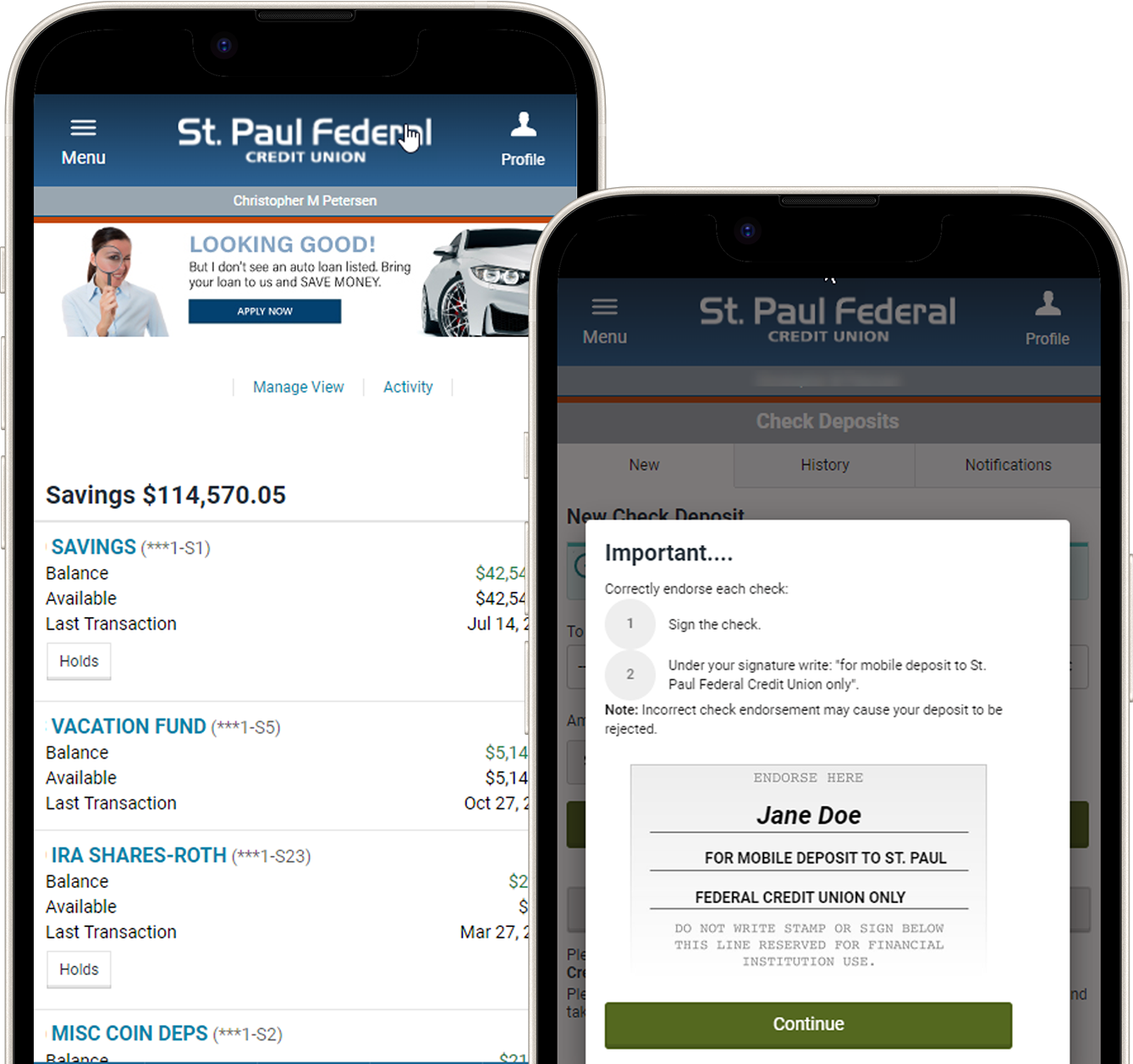
St. Paul Federal Credit Union offers 24/7 eBanking so you can access your accounts with ease. Enjoy full real-time access to your Credit Union accounts, search your account history, view cleared checks, place stop payments, transfer funds, pay bills, view statements, order checks, and perform many other tasks online. Sign up for eBanking in-person or online.
We have recently upgraded our eBanking and mBanking services. Our upgraded eBanking and mBanking services will share the same user credentials so no matter where you are or what device you’re using, you can access the same familiar features.
To learn more about eBanking and mBanking, we have developed this support page for our services.
Ready to start eBanking? Enroll in eBanking today!
Frequently Asked Questions
How do I access my account via mBanking?
Our free mBanking app is available on the App Store and on Google Play. Visit our mBanking page to learn more.
Do I have to do anything to access my accounts on the mBanking App?
Use your eBanking User Name and Password to access your accounts with your mobile device. If you already have the mBanking app, search for St. Paul Federal Credit Union in your app store to ensure you have the latest version.
Are there any charges for eBanking?
No. St. Paul Federal eBanking or mBanking platforms are provided free of charge to members. Standard text message rates do apply if the member chooses to receive text message alerts and notifications.
Which of my accounts can I access using St. Paul Federal eBanking?
You can access the following St. Paul Federal accounts:
- Savings accounts
- Checking accounts
- Money Market accounts
- Certificates of deposit
- Loans
- Credit Cards
- Mortgages
What self-service functions are available with St. Paul Federal eBanking?
Some of the things you can do yourself with the new St. Paul Federal eBanking include:
- View account statements and sign up for eStatements
- View and print check images
- View current and previous year’s tax information
- Stop payment on a check
- Reorder checks and update address and email information
- Create automated Credit Union alerts to notify you when activity occurs on your accounts
- Transfer funds between institutions
- Access & utilize MoneyDesktop Personal Finance Management tools
I forgot my user ID and Password, what should I do?
Simply click on the “Forgot User Name” or “Forgot Password” links located on the Account Login box and follow the quick steps to retrieve your username or password. If you forget BOTH your User Name and password, please contact Member Services at 651-772-8744 or 1-800-782-5767.
I made a deposit but only a portion of it is showing up. Why?
Deposited funds may be subject to holds as disclosed in your account disclosure and deposit receipt. Funds that are subject to holds will appear in the Current Balance but not in the Available Balance until the hold period has ended. Funds that are immediately made available when a deposit is made at a branch, ATM, or by automated deposit will show in the Available Balance. If a deposit is made at a branch, ATM, or by automated system after the cut off time, a portion of the deposit may appear immediately in your Available Balance but the deposit will not post until the following business day, and will not be available to pay incoming ACH, checks, or debit transactions.
What accounts can I transfer to and from in St. Paul Federal eBanking?
You can transfer funds to and from most share and checking accounts you have access to within our branch locations.
When are internal transfers posted to my account?
Internal transfers are posted almost instantaneously during normal business hours.
How do I enroll in St. Paul Federal eBanking if I’m not a current eBanking user?
Click the link under the New User heading found on the Account Login box at www.stpaulfcu.org. Once you agree to the terms of the eBanking User Agreement, just follow the series of steps provided to complete the enrollment process.
Where do I go to view credit card transactions in St. Paul Federal eBanking?
Click on the Account Summary tab, scroll down and click on Credit Card to access the eZCard info.
Where do I go to change my User ID/Password/Multi-Factor Authentication?
Click on the More tab then click on User ID and Password. There you can update your User ID, Password, or Multi-Factor Authentication.
Where do I go to change my personal information in St. Paul Federal eBanking?
Click on the More tab then click on Personal Information under Personal Settings and select what it is you need to change.
How do I view my check images in St. Paul Federal eBanking?
Click on the Accounts tab then click Checking. Expand the transaction details and the View Check Image will be available.
How to I add a secondary user?
Click on the More tab then Delegated Access under Account Management and then click Secondary User Management, then click Add New User.
How long does it take to get a response to messages and service requests sent using St. Paul Federal eBanking?
Messages and service requests will be answered within 1-2 business days.
How do I request a Stop Payment on a check in St. Paul Federal eBanking?
Click on the More tab and click Check Stop Payment under Checking then choose the account number. Select the number of checks, enter the check info, review and accept the Terms and Conditions and then click Stop Payment.
How do I view my statements in St. Paul Federal eBanking?
Click on the More tab and then click eDocuments under Finance Management. Select your document type, your account and click Proceed.
Can I open new accounts within St. Paul Federal eBanking?
Yes, you can open checking, savings, IRA or Money Market accounts while in eBanking. To open the account, click on the More tab and then select Open New Account under Account Management. Follow the prompts in the new tab and choose the new account type you want to open.
Where can I find a Shared Branch location while in St. Paul Federal eBanking?
While in eBanking, click the word bubble in the bottom left of the screen to open Volt. Then ask Volt where to find a Share Branch.
Where can I find a Network ATM while in St. Paul Federal eBanking?
While in eBanking, click the word bubble in the bottom left of the screen to open Volt. Then ask Volt where to find an ATM near you.
Can I access Bill Pay?
Yes, you can access Bill Pay in eBanking and mBanking. Click the Move Money tab and then click Pay Bills.
How do I send a message to staff in St. Paul Federal eBanking?
Click on the Message Center icon and then the Support Message tab. Click New Ticket, select your Inquiry Type, add your subject, message and any necessary files. You can then click Send Message.